
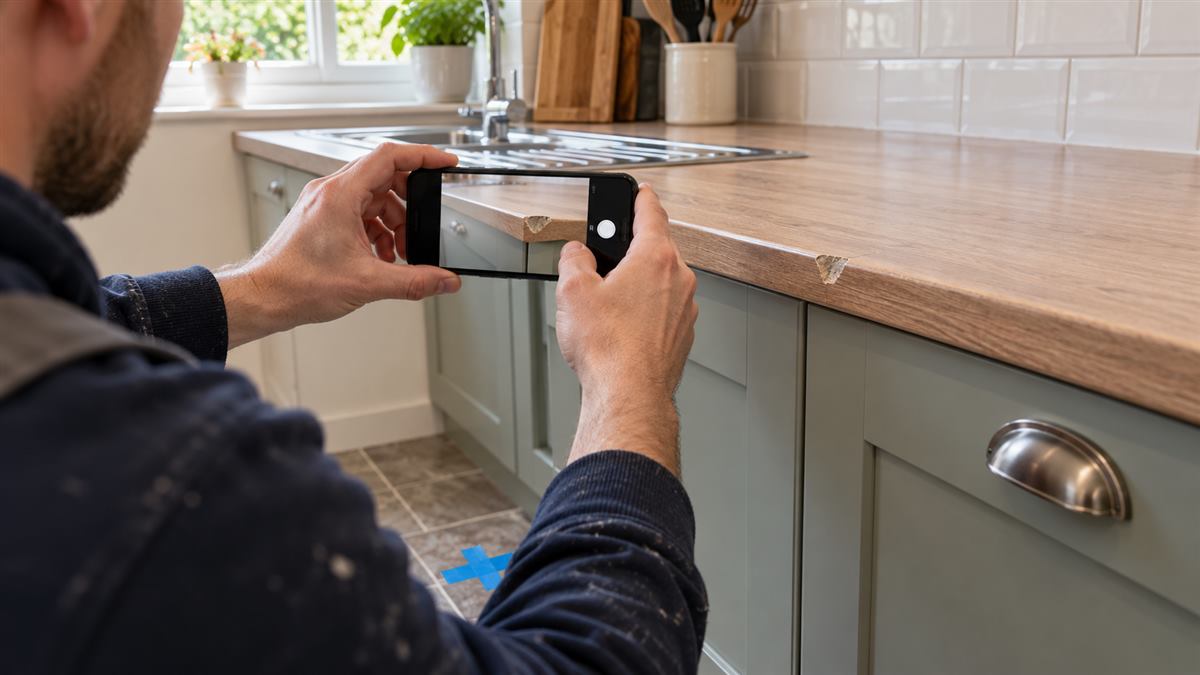
A great repair can look ordinary in a poor photograph. The usual culprit is not the camera: the “before” picture is a tight close-up and the “after” is taken from three steps back in different light. The viewer has to guess what changed. With a repeatable way of taking the photos, a simple side-by-side image tells the story without overselling the result.
This guide shows you how to plan the shots, make a clean comparison with our free before-and-after photo maker, and choose a file that suits a customer update, portfolio or social post. It works for painting, flooring, room makeovers and cosmetic hard-surface repairs. A photograph is evidence of appearance, not proof that a hidden or structural fault has been fixed.
Take the “before” photo before you start
Put the camera down for a moment and decide what the comparison needs to show. For a painted room, a wide shot may make sense. For a small chip in a worktop edge, show the damage clearly but leave enough surrounding surface to identify the location. Take a second, wider context shot if you need it. A close-up alone can make a tiny repair look like a much larger section of work.
Choose a position you can find again. A doorway threshold, grout line or fixed cabinet corner can serve as a marker. Note how high you held the phone and whether you used its normal lens or a zoom setting. Take two or three versions before moving tools or materials into the scene. If the first picture is blurred, you cannot retake it after the repair.
Return to the same view for the “after”
Stand at your marker and match the camera height. Look for a fixed feature near the edges of both frames: a tap, window frame, tile joint or cabinet handle. Keeping that feature in roughly the same place makes the transformation easier to understand. Similar daylight helps too. A glossy surface photographed under a harsh lamp in one shot and soft daylight in the other can look like a different finish even when it is not.
Tidy loose tools, dust and packaging, but do not conceal a part of the job that matters. Wipe fingerprints from shiny surfaces and check for a reflection of yourself or the customer. If the result needs a close-up, take both a matched wide pair and a matched detail pair. The Joist guide to contractor before-and-after photos likewise recommends matching viewpoint, lighting and framing.
Make the side-by-side comparison
- Open the maker: go to the Before-and-After Photo Maker and add your before and after images. JPG, PNG and WebP files are supported.
- Check the order: put the earlier photo on the left and the finished result on the right. The tool labels the two sides so the sequence is unambiguous.
- Crop each side: select the photo you want to adjust. Zoom just enough to align the main subject, then move it horizontally or vertically. Use the same part of the scene as your reference in both halves.
- Choose a restrained style: readable labels and a simple border usually serve a small repair better than a strong decorative frame. Preview the result at the size people will actually see it.
- Add an optional logo: if this is for your business, place the logo where it does not cover the repaired area. Adjust its size and opacity and check that it remains legible.
- Download and inspect: choose PNG or JPG and a small, standard or large output. Open the saved file. The downloaded comparison should match the preview, including crop, label style, border and logo.
Try it with your own project photos
The maker runs in your browser and gives you a ready-to-share side-by-side image. No account is needed.
Which file should you choose?
PNG is a useful default when fine edges, lettering or a small logo need to remain sharp. JPG usually gives a lighter file for email or a web page that will display a photograph at modest size. Start with the standard export, then choose large if the photo will fill a wide screen or be printed. The large option increases output dimensions; it cannot restore detail missing from a blurry original.
Keep the original before and after photos as well as your finished comparison. If you later discover that the crop is too tight, you can make a new comparison from the originals rather than stretching a small exported file. Use descriptive file names such as bath-edge-chip-before-after.jpg instead of leaving a string of automatic download numbers.
Example: a cosmetic worktop edge repair
Imagine a small chip on the front edge of a kitchen worktop. The before image shows the chipped edge and a cabinet handle beneath it. The after image is taken from the same spot, with the handle still visible and the repaired area in focus. When you use the maker, align the handle and edge, then check that the crop has not cut away the surrounding worktop. This helps a reader see both the improvement and the scale of the work.
Our damaged kitchen worktop guide explains cosmetic repair considerations. For a broader overview of what hard-surface work covers, see the beginner’s guide to hard-surface repair. The same photo method can show the outcome of many other projects planned with our calculators and planners.
Keep the comparison honest and safe to share
A matched pair should make the work easier to judge, not manufacture a dramatic difference. Avoid using a darker, dirtier “before” and a bright, edited “after.” Do not remove visible defects from a photo or imply that a cosmetic surface repair fixed a leak, a structural crack or another fault it did not address. If there is uncertainty about an underlying issue, state it plainly in the project notes.
Before posting publicly, check the frame for faces, house numbers, documents and other identifying details. Get the customer’s permission to use their project images. The American Institute of Architects’ project photography guidance is another useful reference when you want to improve composition and present finished work clearly.
Common mistakes and quick fixes
- Different camera angles: line up a fixed object in both images before cropping. If the views are too different, use separate labelled photos rather than forcing a misleading comparison.
- One photo is blurry: use another original shot if available. Export size will not sharpen a blurred image.
- Labels cover the result: choose a quieter label style and keep the repaired section away from the corners.
- The logo dominates: reduce its size or opacity and move it off the area being compared.
- The file looks different from the preview: open the actual download and check it before sharing. If you change a setting, download a fresh copy.
Frequently asked questions
Do I need professional camera equipment?
No. A recent phone camera, steady hands and consistent framing are usually enough for a clear project comparison. Good light and the same viewpoint matter more than extra equipment.
Should I use the same crop for both photos?
Aim to show the same area, but adjust each image separately when the originals have different dimensions. Keep enough context that the viewer can understand where the work took place.
Are photos sent to the website when I use the maker?
No. The tool processes selected photos in your browser. If you subsequently upload the exported image to a social network, email service or another site, that service will handle the file.
Can the comparison prove a repair is permanent?
No. It shows appearance at the time of the after photo. It cannot establish the condition of hidden material, the cause of a defect or the long-term performance of a repair.
Can I print the comparison?
Yes. The tool includes a print option. For a larger print, use a good original image and the large download size, then inspect the saved file first.
Ready to document your next job? Make a free before-and-after comparison here.